
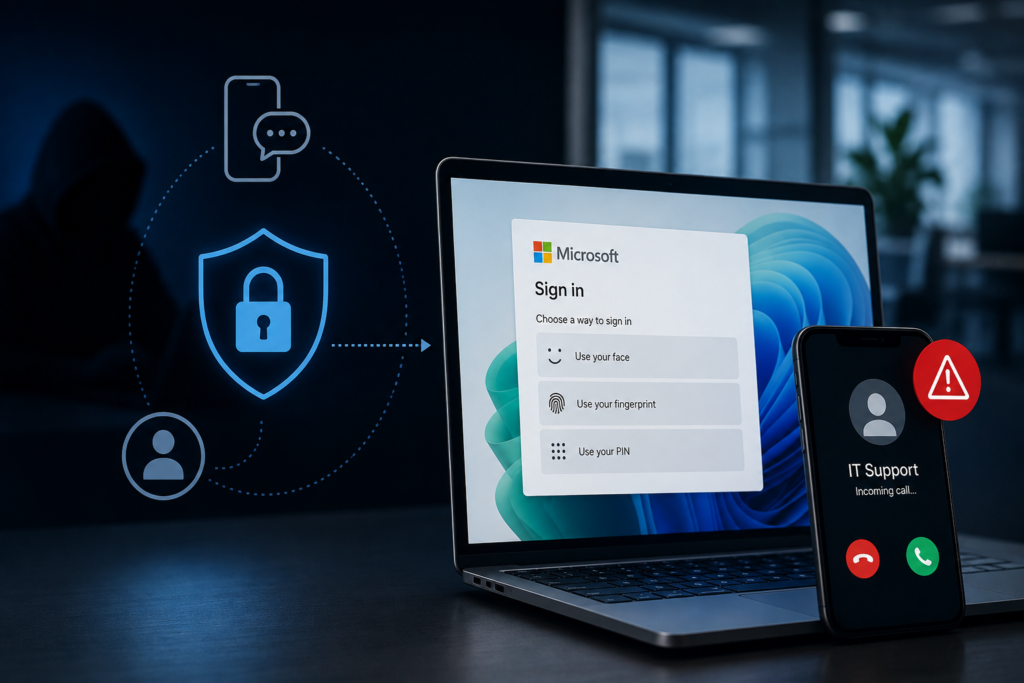
Article Summary: Microsoft Entra ID, the sign-in system behind Microsoft 365, made passkeys the default sign-in experience on September 1, 2026, and Microsoft-provided text and voice codes retire in 2027. Attackers have been exploiting the rollout since April 2026. They call employees, pose as IT support, and walk them through a fake setup that registers the attacker’s own credential. Because there is no attachment and no malicious link, email filtering and endpoint tools have nothing to inspect. Here is what the real prompt looks like, what the fake one asks for, and four things to do now.
Last reviewed: November 12, 2026. Dates checked against Microsoft’s passkeys by default and SMS and voice retirement documentation (updated September 23, 2026).
What the Microsoft 365 Passkey Rollout Actually Changes
Since September 1, 2026, passkeys have been the default sign-in experience for Microsoft 365. Instead of a code texted to your phone, you sign in with a fingerprint, a face scan, or a device PIN. Microsoft automatically enabled passkeys for users who are set up for text or voice codes, and those users see a prompt to register a passkey the next time they complete multi-factor sign-in. For now that prompt can be snoozed, as many times as the user likes.
February 1, 2027 is the harder deadline. On that date Microsoft retires its own text and voice codes for all users except Global Administrators and external users, who follow on July 1, 2027. From those dates, anyone whose only remaining method is SMS or voice must register a passkey before they can sign in, and no tenant can opt out of that. Businesses that still need text or voice codes can keep them only through a third-party telephony provider in Microsoft Security Store. Admins can also delay the September changes, until February 1, 2027, through a temporary opt-out in the authentication methods policy.
Overall, this is the right move. Attackers can intercept text-message codes, and a convincing caller can talk someone into reading one aloud. Passkeys close both of those doors.
How the Microsoft 365 Passkey Scam Works
The problem is timing. After all, a company-wide change to how everyone logs in hands attackers something they normally have to manufacture: a plausible reason to call your staff about their account.
Since April 2026, Okta’s threat intelligence team has tracked a criminal group doing exactly that to Microsoft 365 customers. Okta calls the group O-UNC-066 and links it to an extortion brand named Pink. First, the group phones an employee, claims to be IT support, and says the account needs a new passkey. Then it steers that employee to a page mirroring the real Entra enrollment screen, usually carrying the company’s own branding.
Behind that page sits a live operator, watching the session and adjusting in real time. If the employee uses an authenticator app, they see an authenticator prompt. Those still on text codes see that instead.
Meanwhile, the attacker registers their own passkey on the real account. The employee finishes, sees a confirmation, and believes the account is now safer. In reality, the attacker walks away with a durable credential that survives a password reset. In short, the Microsoft 365 passkey scam never breaks the cryptography. It targets the moment your users create the credential.
The One Detail That Gives It Away
The fake flow asks users to save a “recovery phrase” — a list of words to write down and confirm. In fact, Okta found these are BIP-39 style seed phrases, the format cryptocurrency wallets use. They have nothing to do with passkeys, and a real Microsoft 365 passkey setup has no such step. Rather, it exists purely to keep the user busy while the registration finishes. So if a caller asks anyone on your team to record a recovery phrase during a Microsoft sign-in, that caller is not your IT support.
Why Your Security Tools Will Not Catch This
Notice what is missing here. There is no attachment, no link in an inbox, and no malware. As a result, email filtering and endpoint software have no attachment or link to inspect. Consequently, a Microsoft 365 passkey scam call leaves nothing for your gateway to quarantine.
The data backs that up. Google’s Mandiant team, drawing on more than 500,000 hours of breach investigations from 2025, found that voice phishing is now the second most common way intruders first get in. It accounted for 11% of intrusions. Notably, for break-ins involving cloud accounts, it ranks first at 23%. Email phishing, meanwhile, has fallen to 6% — roughly a quarter of its 2022 share.
In other words, the attack has moved to a channel your filters never see. That is also why what your team does in the first hour of a cyberattack now matters more than it used to.
4 Things to Do During the Microsoft 365 Passkey Rollout
- Brief your team now. Microsoft’s prompts appear inside a normal sign-in, and nobody calls about them. So treat an inbound call about passkey setup as fake by default, unless your own IT team announced the outreach first.
- Give people a fast way to check. Make sure employees know how to reach your help desk directly. Then tell them to hang up and call back on a known number. Most people who fall for this are not careless — they simply had no quick way to verify.
- Audit the passkeys already registered. Start with anyone who can move money or reset other people’s access. Microsoft does send an email when a new Microsoft 365 passkey appears, but attackers name theirs something unremarkable, so the notification is easy to miss. Your Entra sign-in and audit logs will show new registrations and the sign-ins around them.
- Decide how your business verifies a caller. Agree on the method before you need it, and write it down alongside the rest of your security standards. Caller ID is not verification.
Get Ahead of the Rollout
None of this argues against the change. After all, passkeys are genuinely harder to phish than a text-message code, and moving to them is the right call.
The fix is sequencing. Therefore, run your own Microsoft 365 passkey registration campaign early, on your own schedule, with your own communications. As a result, your people will already hold a passkey before the strangers start calling, and the pretext stops working.
From the user’s seat, the upgrade and the scam look nearly identical. Ultimately, what separates them is whether your team knows what the real prompt looks like, and whether they have a quick way to check when they are unsure.
Want a second set of eyes on your Microsoft 365 tenant? We offer a free Technology Assessment: a high-level review of where your business technology stands, the potential issues we can see, and where improvements could help, followed by a summary report of what we found and our recommendations. Any work afterward is scoped and quoted separately.